Minecraft Circle Generator

Create pixel-perfect circles, ellipses, and sphere slices with real-time 2D & 3D preview. Includes Builder Mode, inner circle cutout, world coordinates, and export to PNG, SVG, JSON & Schematic.

PreviewPan · Zoom · Mark blocks
100%
Blocks: 0
Sphere slice2D
Ready.
Zoom: 100% • Blocks: 0

The most complete tool for building pixel-perfect circles, ellipses, and sphere slices in Minecraft. Visualise your design in real-time 2D or interactive 3D, step through every block with Builder Mode, then export to PNG, SVG, JSON, or a ready-to-import Schematic.

No login Desktop & Mobile Auto-save 4 export formats

Key Features

Circle, Ellipse & Sphere

Generate any shape from 1 to 512 blocks wide. Sphere slice mode lets you build every horizontal layer of a dome by stepping through the Y slider.

Interactive 3D View

Enable 3D mode and drag to rotate your build from any angle. Blocks are rendered with correct top, side, and dark face colours matching your chosen block type.

Builder Mode

Click Enter Builder then step through each block with Next/Prev/Play, or click any block directly on the canvas to mark it as placed. A green checkmark confirms each block.

4 Export Formats

PNG for a printable reference, SVG as a crisp vector (each block is a properly spaced cell), JSON with world coordinates, or a .schem for WorldEdit / MCEdit.

5 UI Themes

Switch between Dark, Light, Forest, Ocean, and Classic themes. Your preference is persisted so the tool always opens in your chosen style.

Maximize View

Expand the canvas to full screen with ⤢. Essential for large circles (128+ blocks). Press Esc or click ⤡ to restore the normal layout.

Auto-save

Every change you make is automatically saved to your browser. Close the tab and come back, your last session is restored instantly, no account needed.

Mobile-first Tabs

On phones the interface splits into Controls · Preview · Export tabs. Pinch-to-zoom and touch panning work on the canvas. Preview is shown by default.

How to Use

1

Pick a shape & size

Select Circle, Ellipse, or Sphere. Enter your width, use odd numbers to get a true centre block. Preset buttons cover the most common sizes.

2

Set world coordinates

Enter your in-game X / Y / Z so exported coordinates match your build site. Leave at 0 / 64 / 0 for a generic layout.

3

Customise the look

Choose a theme, toggle grid lines, set your colour palette or alt pattern, and pick fill / outline / thick outline mode.

4

Preview in 2D or 3D

Pan and zoom the 2D grid, or enable 3D and drag to rotate. Use ⤢ to maximise the canvas when working with large designs.

5

Build block by block

Click Enter Builder to activate step-through guidance. Use Play for auto-advance, or click individual blocks on the canvas to mark them manually.

6

Export your design

Download a PNG for a visual reference, SVG for a vector print, JSON for scripting, or a .schem to import directly with WorldEdit.

Common Use Cases

Survival Bases

Outline mode with minimum blocks, perfect for resource-tight early-game circular walls and foundations.

Towers & Domes

Use sphere slice to build every Y-layer of a dome. Export each layer as a separate PNG and stack them in-game.

Multiplayer Servers

Export a .schem or JSON and share it with your team for consistent, symmetrical platform designs across the world.

Redstone & Farms

Circular crop farms and redstone contraptions need exact coordinates. Use the JSON export for every block position.

Education

Teach pixel art, geometry, and coordinate systems. The grid makes it easy to count blocks and visualise symmetry.

Creative Art

Large circular murals, arena floors, or decorative landmarks. Use checker and ring alt patterns for intricate detail.

Pro Tips

Odd dimensions give a real centre block (e.g. 21×21). Even widths can't have one — the faint-block guide falls back to a line automatically.
Thick outline with thickness 2–3 creates strong walls with room for chests or lighting on the inside.
Inner circle cutout creates a hollow ring, perfect for moat foundations or decorative arenas.
Zoom to 300–400 % and enable coordinates to read exact world positions for small or intricate circles.
Chunk alignment: the 16×16 preset aligns circle origins with Minecraft chunk boundaries for optimised world loading.
Builder Play speed is 160 ms/block. Pause at any time to work at your own pace, or step manually with Next / Prev.
3D block colours match the real Minecraft palette. Each block type shows correct top, side, and shadow faces.
Auto-save runs on every change. Your exact settings, including theme, colours, and 3D angle, are restored on the next visit.

Frequently Asked Questions

How do I make a perfect circle in Minecraft?
Choose Shape → Circle, enter an odd width (e.g. 21) so there is a centre block, and pick Outline or Filled mode. Changes apply in real time, no Generate button needed. Use Builder Mode to step through each block placement for exact symmetry.
What changed — there is no Generate or Save button?
The generator is now fully real-time, every change instantly updates the preview. Auto-save runs on every change and restores your session automatically when you re-open the page, so the manual Save / Load / Reset buttons are no longer needed.
How does Builder Mode work?
Click Enter Builder in the preview panel. The first block is highlighted in green with its sequence number. Click it on the canvas to mark it placed (green checkmark), then use Next to advance or Play to auto-step at 160 ms/block. You can also click any block at any time to toggle its mark manually. Click Exit Builder when done.
What does the Schematic export do?
It creates a .schem file (modern schematic format) compatible with WorldEdit ( Litematica, and other tools. Select your desired block type in the 3D block picker (visible when 3D view is enabled) to determine which block the schematic will use.
Why use odd circle sizes?
Odd widths (15, 21, 63…) produce a single centre block, which makes circles perfectly symmetric. Even widths have their centre between four blocks, which can make the result look slightly off-centre.
How does the 3D view work?
Enable 3D view in Display settings, then drag the canvas to rotate and scroll to zoom. Each block is drawn with the real colour palette of its type (stone, grass, obsidian…) across top, side, and dark faces. The block is also used for schematic export.
What is the difference between the centre guide styles?
Dashed lines draw two crossing lines through the exact centre, works for any dimension. Faint blocks highlights the centre row and/or column as a subtle overlay. For even dimensions a single-block centre column cannot exist, so that axis falls back to a line automatically.
Is it mobile friendly?
Yes. On small screens the layout switches to Controls · Preview · Export tabs. Preview opens by default. Pinch to zoom, single-finger pan, and the Maximize button all work on mobile.
Can I build an ellipse instead of a circle?
Yes, select Ellipse in the Shape dropdown, then set different Width and Height values. The generator uses a mathematically correct midpoint ellipse algorithm to produce the outline.
What is the maximum circle size?
Up to 512 × 512 blocks. For very large circles use the Maximize button and zoom out fully. Builder Mode is most useful at smaller sizes; for large builds the PNG export makes a handy printable reference.
Does it support Slab and Stair circles?
Currently, the generator only supports full blocks. Slab and Stair circle generation is a highly requested feature and is planned for a future update.

Planned features include:
  • Top / Bottom slab circles
  • Stair circles with correct facing directions
  • Layered slab domes and spirals

Build Tutorials

Building a Dome

Set Shape to Sphere with a 25-block width and mode to Filled. Use the sphere slice slider starting from Y −12 (the bottom layer). Enable 3D view to visualise the dome. Enter Builder and use Play to auto-step through each block. Export as PNG per layer for an in-game reference guide.
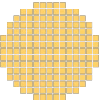
Minecraft dome build

Tower Base

Choose Circle, width 15, mode Outline to save resources. Zoom in for precision, export PNG, and use Builder Mode to place blocks methodically from a specific quadrant. Works perfectly for survival-mode watchtowers.
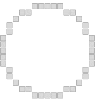
Minecraft tower base

Elliptical Arena

Select Ellipse with dimensions 40 × 20, Thick Outline with thickness 3. Use the checker or quadrants alt pattern to distinguish the two halves. Export as JSON and share with collaborators for identical arenas across a server.
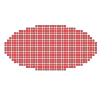
Minecraft arena

Sphere Statue

Set Sphere to 30-block width and enable Block Coordinates in Display. Enter Builder with Play. Use the slice slider to refine individual layers, then export as JSON for precise in-game replication. Great for server monuments.
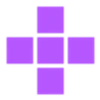
Minecraft sphere statue